How to Add Subtitles to a Video: Soft or Burned-In
There are two ways to add subtitles to a video, and they behave very differently. Soft subtitles live in a separate file that the viewer can switch on or off. Burned-in subtitles are drawn into the picture itself, so they show everywhere and can never be turned off. Pick the one that matches where the video will be played, then follow the steps below. This guide is for any video file; if yours is already on YouTube, read how to add subtitles to YouTube videos as well.
Soft or burned-in: decide first
Soft subtitles are an SRT or VTT file kept next to the video, or uploaded to the platform that hosts it. Viewers can turn them on and off and choose a language, you can fix a typo in a text editor, and the video itself is never touched. VLC and most desktop players load the file automatically if it has the same name as the video and sits in the same folder. The weakness is that something has to load the file: many social apps and television apps never do.
Burned-in subtitles (also called hardcoded) are part of the image. They appear on a phone, in a social feed and on a television that has never heard of SRT. The cost is that they are permanent: you cannot switch language or turn them off, and a typo means burning again from the original video.
A simple rule: use soft subtitles wherever the player or platform supports a subtitle track, and burn them in where it does not, or where most people watch with the sound off. Either way, keep the original video and the subtitle file.
How to add subtitles to a video, step by step
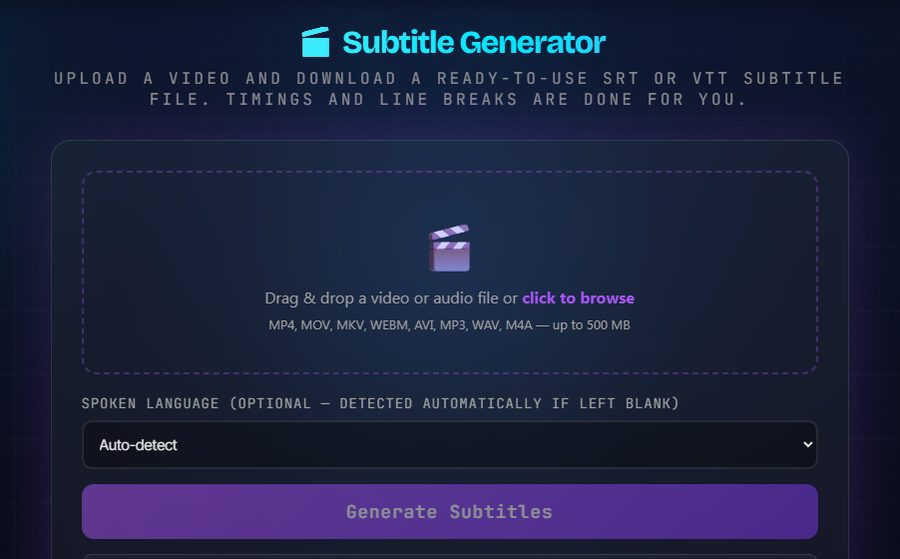
- Get an SRT file. If you already have one, skip ahead. To create one automatically from the video, upload it to the subtitle generator and download SRT, VTT and a text transcript. If you only have the words, the TXT to SRT converter turns a text file into an SRT with one cue per line; the timing is simple arithmetic, so expect to adjust it.
- Read it and fix the mistakes. An SRT file is plain text, so any text editor will do. Automatic transcripts are accurate enough that editing beats typing from scratch, but names and technical terms are where mistakes cluster.
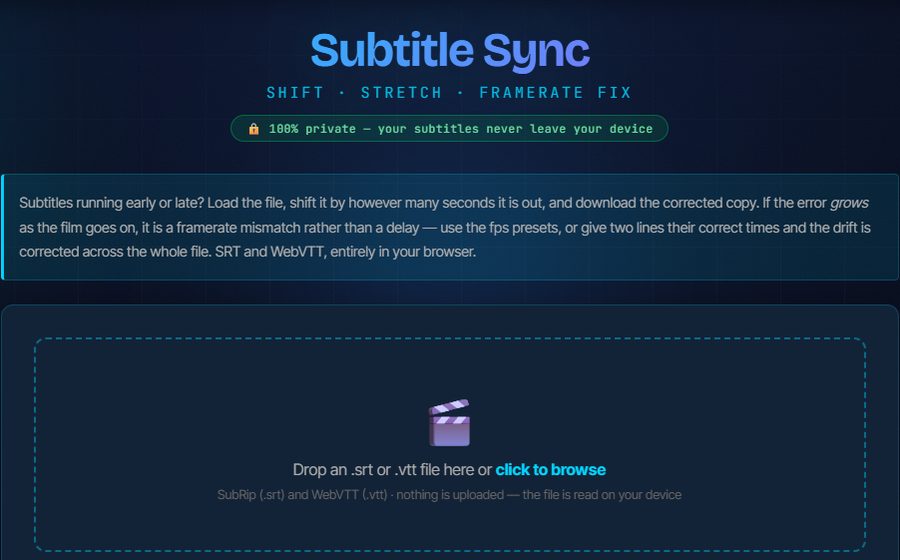
- Fix the timing if it is off. If every line is early or late by the same amount, shift the whole file with Subtitle Sync. If the error grows as the video plays, it is a frame rate mismatch, and the same tool can stretch the timing to match.
- Translate or convert it, if you need to. The SRT translator translates a subtitle file and keeps the timestamps, so you get one file per language. If a platform wants another format, use the subtitle converter.
- Option A: keep the subtitles as a separate track. Upload the SRT or VTT in the platform’s subtitle settings, or save it next to the video with the same name (video.mp4 and video.srt) so players such as VLC pick it up. Viewers can switch it on or off.
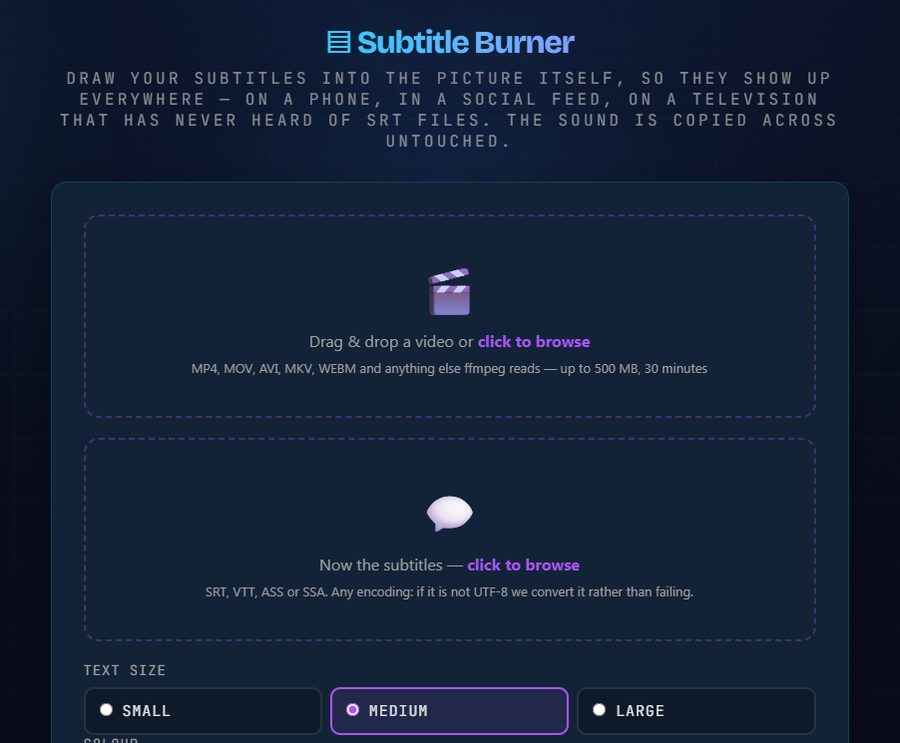
- Option B: burn them into the video. Open the subtitle burner, upload the video and the SRT, VTT, ASS or SSA file, choose the text size, colour, background and position, and download the result. The audio is copied untouched and nothing is watermarked.
Things to know about the two kliptools.io tools
The subtitle generator and the subtitle burner live on kliptools.io, a separate site from this one. Unlike our kliptools.com tools that run in your browser, both work on our server: the generator extracts the audio and transcribes it, and the burner re-encodes the picture with the subtitles drawn on. Both pages say that uploads are deleted when the job ends, and both have a limited free allowance with larger limits available through a credits pack, so read the limits on the page before you start a long video.
Burning does re-encode the picture, a little, because text has to be written into the image. The sound is not part of that: it is copied across as it is. And if accented characters in your subtitle file come out as gibberish elsewhere, the file is probably not UTF-8; the burner detects that and converts it.
On formats: SRT is the safe default and almost everything reads it. WebVTT is the one a web page needs for its own video player. The subtitle converter moves between SRT, VTT, ASS, SUB, SBV and plain text, and the generator already gives you SRT and VTT from one upload.